









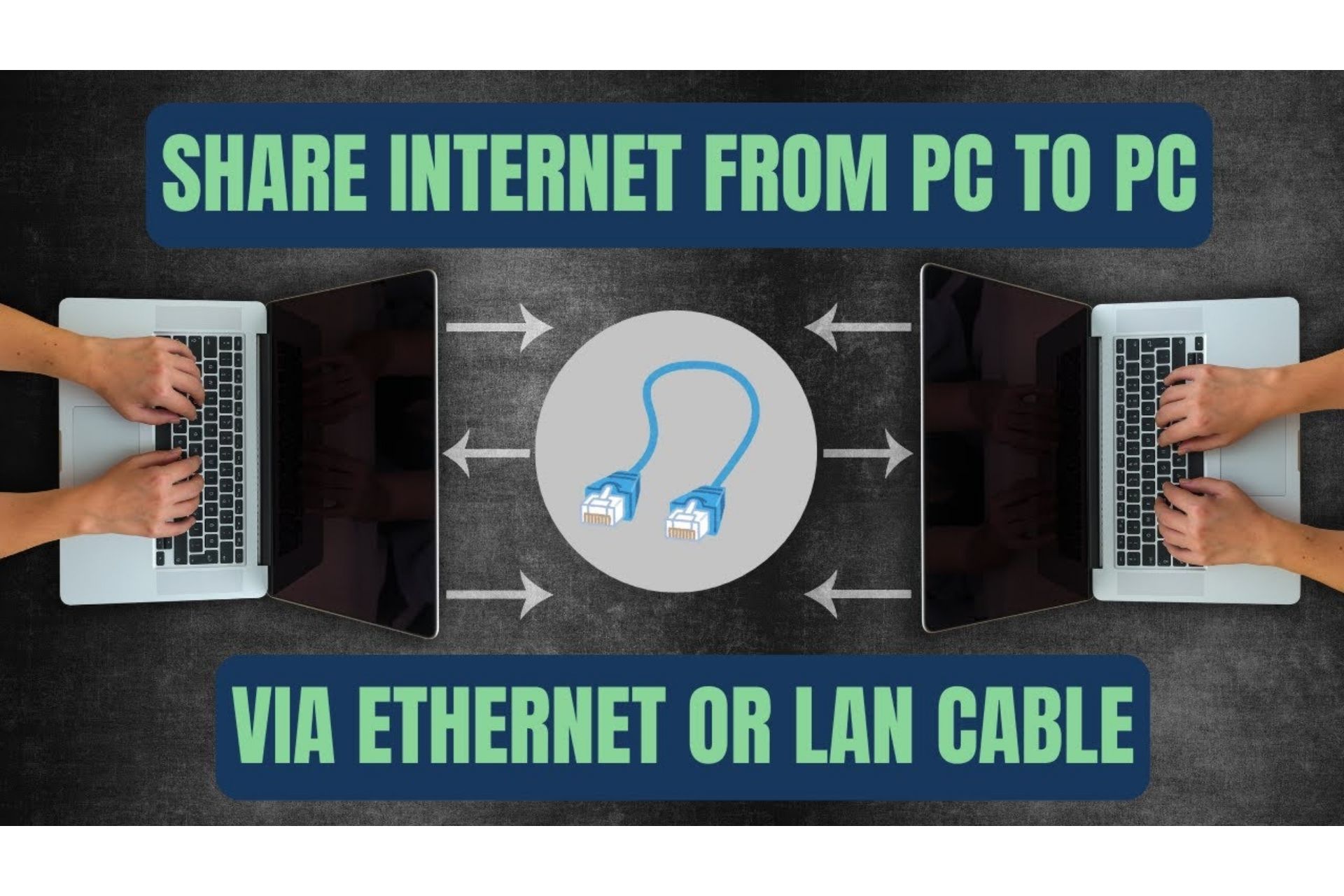
Turn your laptop into a hotspot for desktop computers, gaming consoles, and smart TVs
Do you have a laptop connected to the internet but another device—like a desktop computer, smart TV, or gaming console—that only has an Ethernet port? Or maybe your desktop computer does not have Wi-Fi, and you need to get it online quickly without buying extra hardware.
The solution is simple: share your laptop’s internet connection through a single Ethernet cable. This works on Windows 10 and Windows 11, requires no additional software, and takes less than five minutes to set up.
Here is exactly how to do it.
What You Will Need
Before starting, gather these items:
- A laptop with working internet (Wi-Fi or mobile hotspot)
- A desktop computer or other device with an Ethernet port
- One Ethernet cable (also called network cable or RJ45 cable)
- Windows 10 or Windows 11 on your laptop
Where to find an Ethernet cable in Uganda: Most computer shops in Kampala (Kikuubo, Computer Village, Downtown) sell them for UGX 10,000–25,000 depending on length. A one-meter or two-meter cable is usually enough.
Important limitation: This method shares internet only through the cable. Your laptop must remain connected to its own internet source (Wi-Fi or mobile data) throughout.

Step-by-Step Setup on Windows
Step 1: Connect the Cable
Plug one end of the Ethernet cable into your laptop’s Ethernet port. If your laptop does not have an Ethernet port (common on newer slim laptops), you will need a USB to Ethernet adapter (UGX 30,000–50,000 at any computer shop).
Plug the other end into your desktop computer, smart TV, or gaming console.
Step 2: Open Network Settings
On your laptop:
- Press
Windows + Rkey - Type
ncpa.cpland press Enter
This opens the Network Connections window showing all your adapters.
Step 3: Identify Your Connections
You will see at least two adapters:
- Wi-Fi or Mobile Hotspot — This is your internet source
- Ethernet — This is the cable连接 to your other device
Step 4: Share the Internet Connection
- Right-click on your internet source (Wi-Fi or Mobile Hotspot)
- Select Properties
- Click the Sharing tab
- Check the box that says: “Allow other network users to connect through this computer’s Internet connection”
- In the dropdown menu below, select your Ethernet adapter
- Click OK
Step 5: Confirm Automatic IP Settings
Windows automatically assigns an IP address to the connected device. To ensure this works:
- Right-click on your Ethernet adapter
- Select Properties
- Double-click Internet Protocol Version 4 (TCP/IPv4)
- Ensure “Obtain an IP address automatically” is selected
- Ensure “Obtain DNS server address automatically” is selected
- Click OK twice
Step 6: Test the Connection
On your desktop computer, smart TV, or gaming console:
- Wait 30 seconds for Windows to configure the connection
- Open a browser and try to load a website
If the internet works, you are done. If not, restart both computers and repeat steps 4 and 5.
Alternative Method: Mobile Hotspot (Windows 11 Only)
Windows 11 has a built-in feature that makes sharing easier, but it only works for Wi-Fi sharing, not Ethernet. If you want to share your laptop’s internet to another device using Wi-Fi:
- Click the network icon in the taskbar
- Click the Mobile hotspot button
- Turn it On
But for Ethernet sharing specifically, use the method above.
Troubleshooting Common Problems
“Sharing” tab is missing
This happens if you have multiple network adapters or if Windows did not detect the Ethernet connection properly.
Fix: Ensure the Ethernet cable is properly connected on both ends. Restart your laptop. If the tab is still missing, disable and re-enable your Ethernet adapter in the Network Connections window.
The connected device says “Unidentified network”
This means Windows is not assigning an IP address correctly.
Fix: On the connected device (desktop), open Command Prompt as administrator and type:
ipconfig /release
ipconfig /renew
Then restart both devices.
Internet works but is very slow
Ethernet sharing has some overhead. Your laptop’s processor handles the routing.
Fix: Close unnecessary applications on your laptop. Avoid downloading large files while sharing. For best performance, use the shortest Ethernet cable possible.
My laptop has no Ethernet port
You need a USB to Ethernet adapter. These cost UGX 30,000–50,000. Plug the adapter into any USB port, then connect the Ethernet cable to the adapter. The setup process is exactly the same.
The connected device is a smart TV
Smart TVs often require manual IP configuration. After sharing is set up, on your TV go to Network Settings → Advanced → IP Settings → Set to Automatic (DHCP) . Then restart the TV.
The connected device is a PS4, PS5, or Xbox
Game consoles usually detect the connection automatically. If not, go to Network Settings → Set Up Internet Connection → Use a LAN Cable → Easy/Automatic.
When This Method Is Useful
| Scenario | Why It Helps |
|---|---|
| Desktop computer without Wi-Fi card | Saves buying a UGX 80,000–150,000 Wi-Fi adapter |
| Smart TV in a room with no Wi-Fi signal | Ethernet through laptop can be stronger |
| Temporary setup for a few hours | No need to reconfigure home network |
| Hotel or guest house with only one Ethernet port | Share with multiple devices (using a switch) |
| Repairing or testing another computer | Quick internet access without moving cables |
When This Method Does NOT Work
- Sharing to multiple devices through one cable — You need an Ethernet switch (UGX 50,000–100,000)
- Your laptop must restart or go to sleep — Sharing stops immediately
- Both devices need high-speed internet for gaming — The laptop becomes a bottleneck
- Your laptop uses mobile data with limited plan — Sharing consumes more data than normal use
A Better Long-Term Solution
While Ethernet sharing works perfectly for temporary needs, it has one big limitation: your laptop must stay awake and connected at all times. If your laptop sleeps, the internet stops.
For permanent setups, consider these alternatives:
For desktop computers: Buy a USB Wi-Fi adapter (UGX 50,000–150,000). This frees your laptop completely.
For multiple devices: Buy a network switch and connect directly to your main router.
For rented rooms with only one Ethernet port: Buy a Wi-Fi router (UGX 100,000–250,000) and set it up once.
But for emergencies, short-term needs, or when you simply do not want to spend money, Ethernet sharing remains a reliable free solution.
Have you tried this method? Did it work for your setup? Share your experience or ask questions in the comments below.


